
Installing apps on your reMarkable
Everything you need to sideload TabletBob apps onto your reMarkable Paper Pro. Follow the steps below and you'll be up and running in minutes.
Part 1
Before you begin
Side-loading Apps requires a few one-time setup steps on your computer. You only need to do this once.
-
01
A reMarkable Paper Pro
These apps are made for the reMarkable Paper Pro and reMarkable Paper Pro Move. They haven't been tested on other reMarkable models, so they may not work there.
-
02
Back up your tablet first
The next step erases everything on your tablet. Open the reMarkable app on your phone or computer and check that all your notebooks have finished syncing before you go on.
-
03
Turn on Developer Mode
On your tablet, go to Settings → General Settings → Software → Slide Advanced → Developer mode → and follow the on-screen steps, read the disclaimers, and let the tablet restart.
Important Notice Before You Proceed
Enabling Developer Mode will factory reset your tablet, erasing all documents stored locally.
- Any documents synced to your reMarkable cloud account should restore once you sign back in and connect to the reMarkable app.
- TabletBob applications and installer are independent third-party software not affiliated with, endorsed by, or supported by reMarkable AS.
By continuing, you acknowledge that sideloading custom software modifies your system configuration, potentially voiding your manufacturer warranty.
Part 2
Download and Install the TabletBob Application
The installer handles everything needed to side-load apps onto your reMarkable Paper Pro. Before running it, connect your tablet with its original USB-C cable.
Built on open source: the installer is built around Vellum, an open-source (MIT) package manager for reMarkable. TabletBob isn’t affiliated with Vellum.
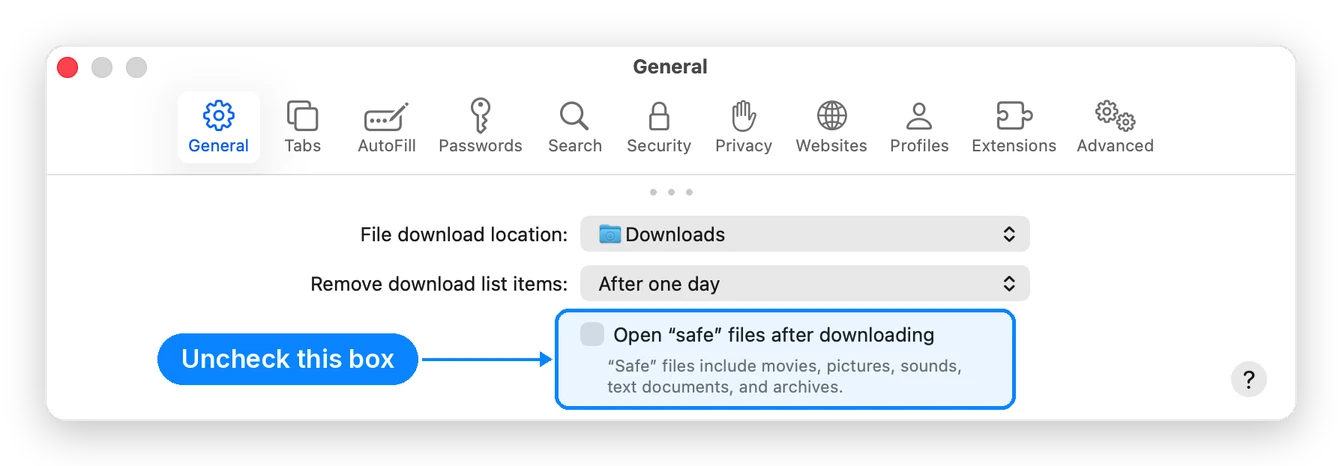
Using Safari on a Mac and got a folder instead of a .zip? Nothing is wrong with the file. It’s a Safari setting. Here’s what to do.
That’s not a problem with the file — it’s a Safari setting. Safari has “Open ‘safe’ files after downloading” turned on by default, and it treats .zip as safe, so it unzips automatically and shows you the folder instead of the .zip. Two ways to deal with it:
- Just use the folder. Nothing’s wrong with it — it has all the installer files. Carry on exactly as if you’d unzipped it yourself.
- Keep the .zip instead: Safari → Settings → General → uncheck “Open ‘safe’ files after downloading.” After that, downloads stay as the .zip.
Mac, Windows or your browser says the installer is blocked? This is normal for independent software. Here’s how to allow it.
TabletBob Installer is new and comes from a small developer, so your computer may warn you the first time you download or open it — and sometimes again after an update. This is normal. Here is what to click:
In Chrome
You’ll see: “Suspicious download blocked”
- 1 Click the arrow next to the blocked download (or open your Downloads list)
- 2 Click Download suspicious file
On a Mac
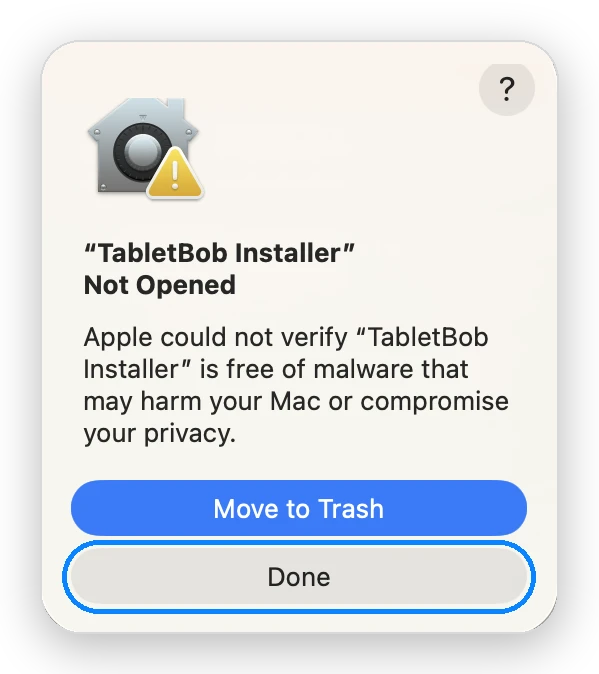
You’ll see: “TabletBob Installer” Not Opened
- 1 Click Done (not Move to Trash)
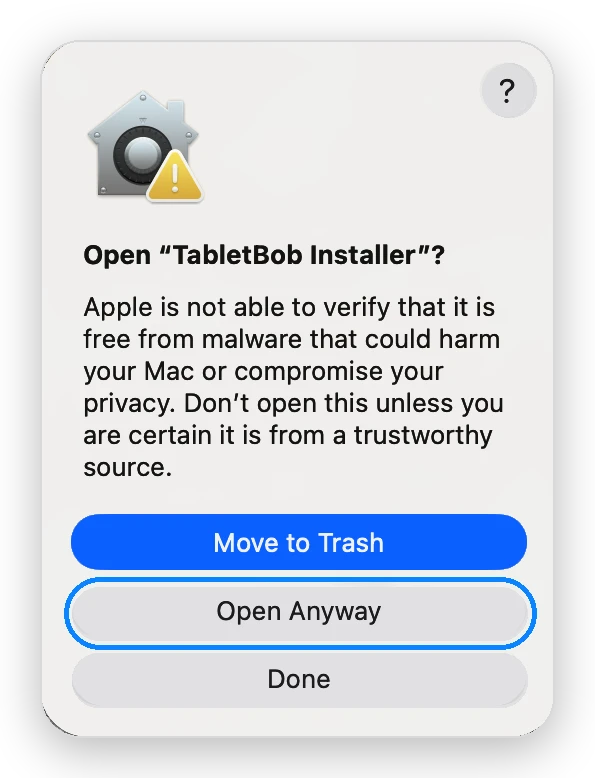
- 2 Open System Settings › Privacy & Security, scroll down and click Open Anyway
- 3 Open the installer again and click Open Anyway, then enter your Mac password if asked
- 4 When asked if TabletBob Installer may find devices on your local network, click Allow — otherwise it can’t reach your tablet
On Windows
You’ll see: “Windows protected your PC”
- 1 Click More info
- 2 Click Run anyway
- 3 Accept the User Account Control prompt if it appears
What it looks like on a Mac
Why the warnings? Browsers and computers are cautious about apps that few people have downloaded yet. The warning doesn’t mean anything is wrong with the app, and it will appear less often as more people use it.
Part 3
Using the TabletBob Installer
Once the installer is open and your tablet is plugged in, it takes four steps. Click a step to see exactly where to click.
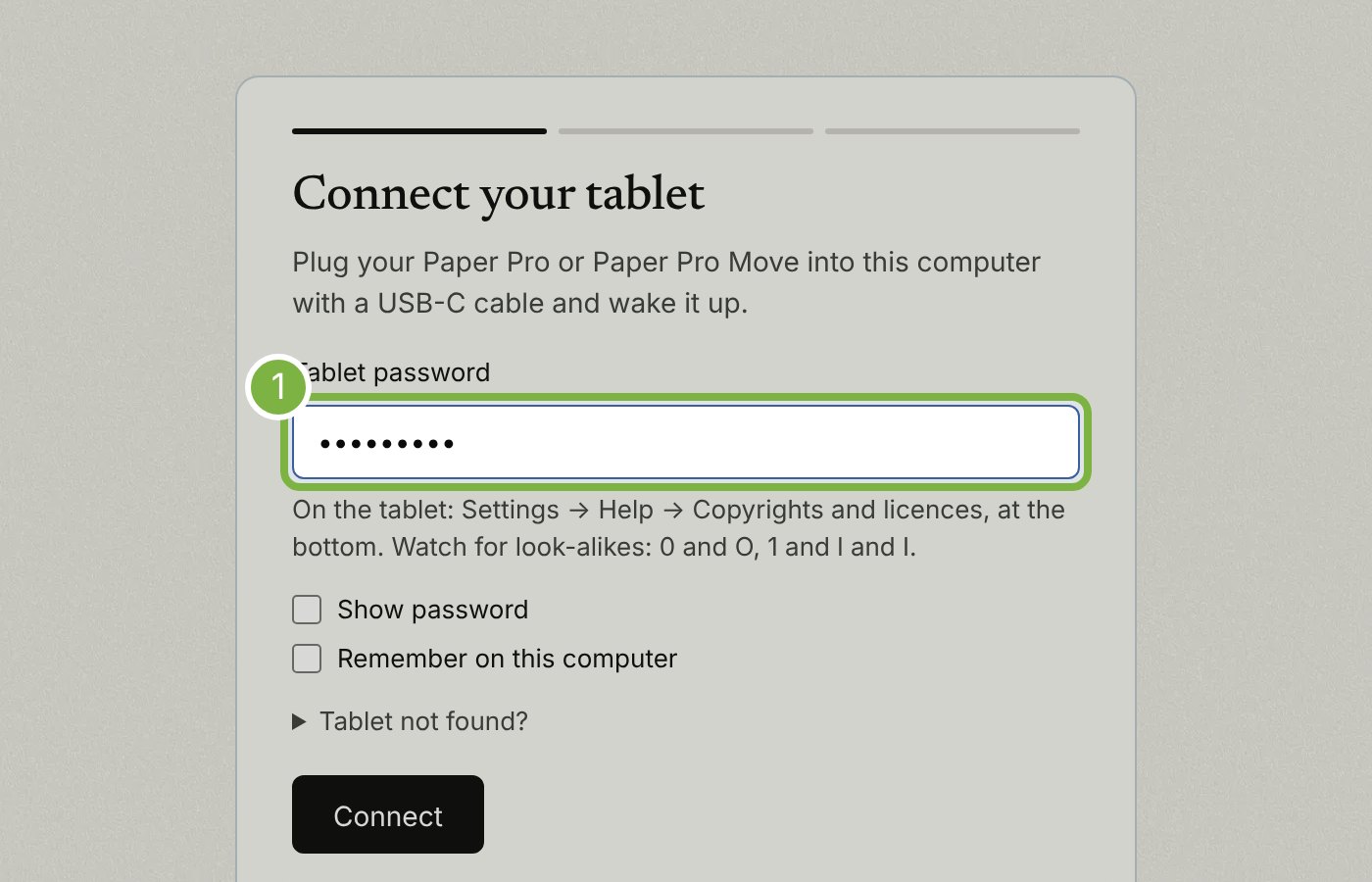
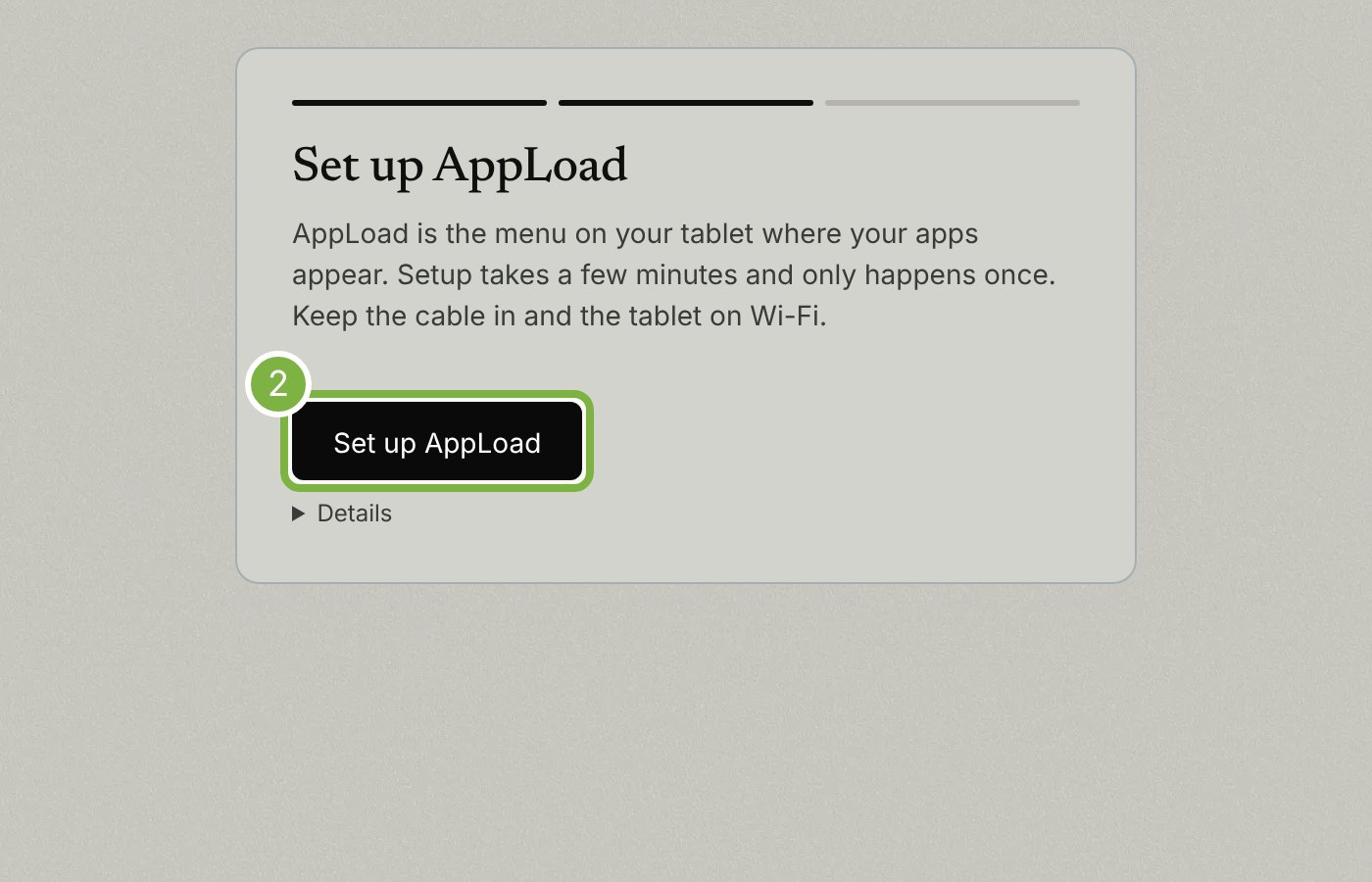
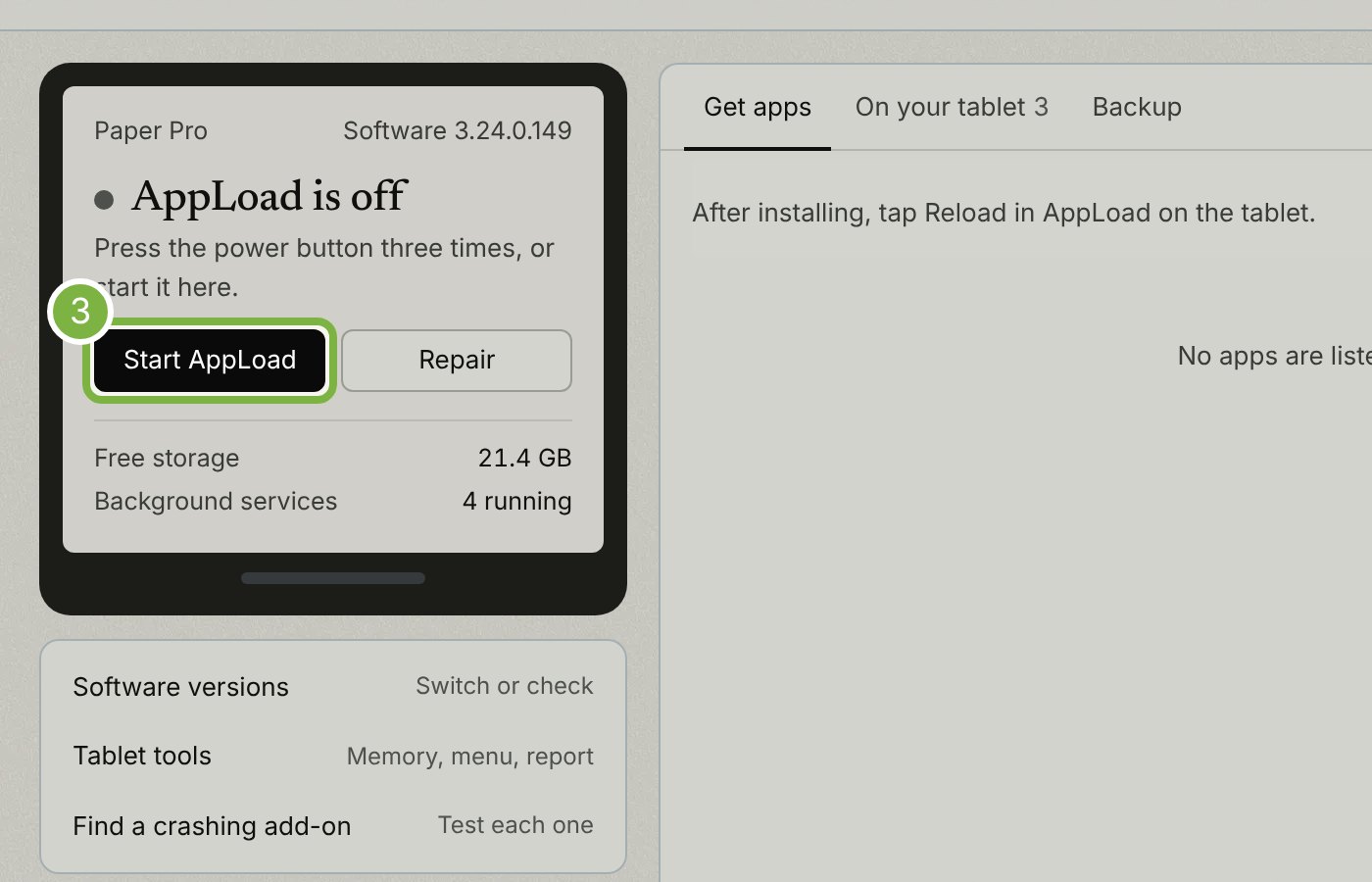
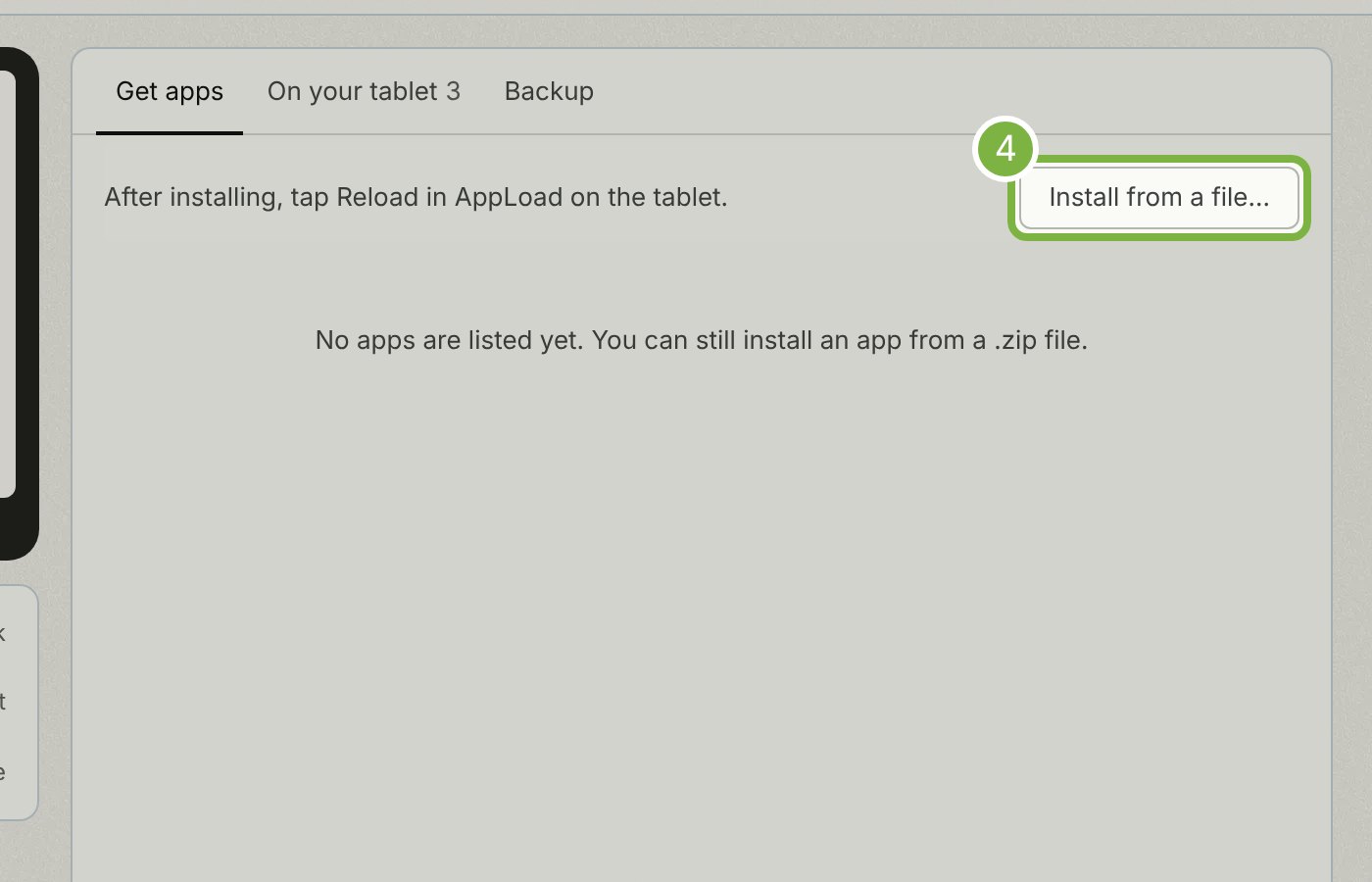
Step 1 of 4
That’s it. To add more apps later, open the installer, connect and use Install from a file… — no need to repeat Parts 1 and 2.
Troubleshooting
Installed, but the app isn't showing?
On the tablet, open AppLoad and tap Reload in the top-right corner. New apps appear after a reload.
Installer can't find the tablet?
Wake the tablet and check it's plugged in. If it was unplugged or went to sleep while connected, restart it (hold the power button, then Restart) and click Connect again.
Still not connecting?
Check that your USB-C cable carries data, not only power. Some cables are charge-only, so try the tablet's original cable or another one.
Where is my tablet password?
On your tablet, go to Settings → Help → Copyrights and licences and scroll to the bottom. The password is listed there.
Mac: the installer can't reach the tablet?
If you clicked “Don’t Allow” on the local network question, open System Settings › Privacy & Security › Local Network, turn on TabletBob Installer, then quit and reopen the installer. Still blocked? In the folder you downloaded, double-click “Open with Terminal” and keep that window open while you use the installer.
Apps gone after a reMarkable update?
Connect the tablet and click Repair on the tablet panel. If the new reMarkable software isn't supported yet, Software versions lets you switch back to the previous one; your notebooks and apps are kept.
Tablet screen keeps restarting?
Click Find a crashing add-on. The installer tests each add-on on its own and removes the one that crashes the screen. Leave the tablet plugged in until it finishes.
Factory reset or a new tablet?
Before you reset, open the Backup tab and click Back up all apps. Afterwards, set up AppLoad again and use Restore from a backup to put your apps back.
Contact us
Questions about an app, an order or installing? Send us a message and we’ll reply by email.
Ready when you are
Ready to get started?
Browse the app catalogue and find something useful for your workflow.